The Font Manager manages all the fonts available to the project.
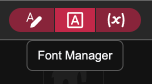
The Font manager can be accessed the button in the editor
Installed tab
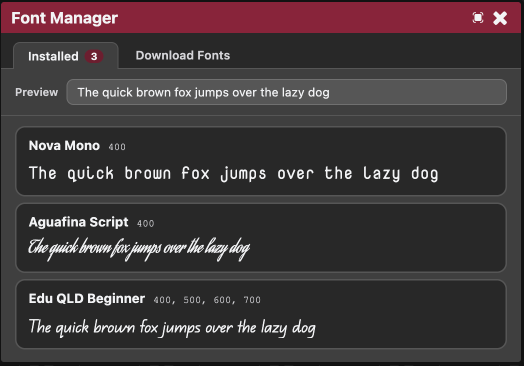
Lists every font family currently installed in the project as a card: family name,weight variants, and a live preview line.
Clicking a card jumps to that font's folder in the File Manager.
Download Fonts tab
This is built-in Google Fonts browser, searchable and filterable by category (Sans Serif, Serif, Display, Handwriting, Monospace), each with a Download button that fetches every weight/style variant of the selected font and saves the font files into your project.
You also browse the available fonts directly via the Google Fonts Website.
Adding fonts manually
Fonts can have strict licences on them and can get you into trouble if you use a font that you are not allowed to use. Mammut’s Font manager pulls fonts only from Google Fonts which are all free to use and don’t require a licence, but you should check the licence of any fonts that you install manually.
To use your own fonts in your project, copy the font file into the assets/fonts/<font name>/ directly (via the File Manager). Once done the font will show up in the list of installed fonts in the Installed tab.
Supported font file types: .ttf, .otf, .woff, .woff2, .ott.
Adding a font to a Style
Once installed, a font is available by family name in any style in the Styles Manager's Font dropdown.